


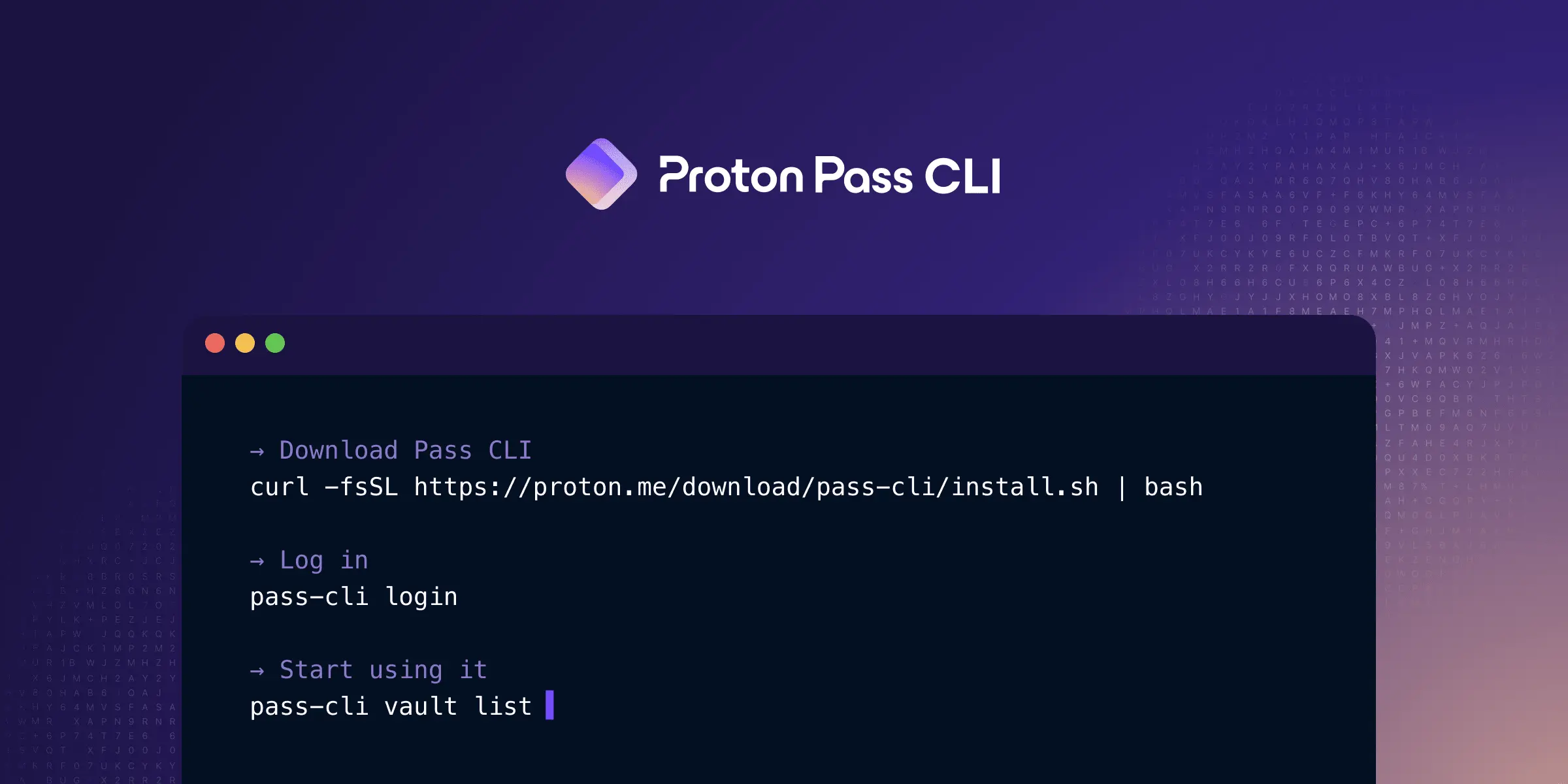
Proton Pass CLI: Manage Passwords and Secrets From Your Terminal
The Proton Pass CLI brings your encrypted vault into the same place you already work: the terminal. Instead of bouncing between a browser tab and a shell every time you need a credential, you can list vaults, retrieve passwords, inject secrets into environment variables, and even work with SSH keys from one binary. If you manage servers, ship code, or automate infrastructure, that convenience adds up quickly.
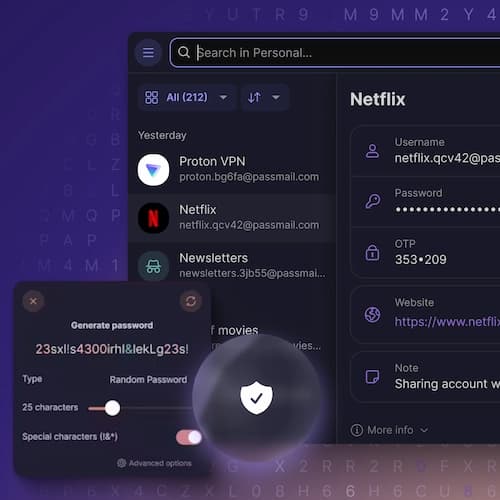
Proton Pass
Secure password manager with end-to-end encryption. My go-to for managing all passwords and sensitive data.
Free Plan or Discounted Paid Plans
Affiliate Disclaimer: If you decide to buy through my links, I may earn a small commission (at no extra cost to you). It helps keep the channel going! I only recommend tools and products I genuinely use and trust.
What Is the Proton Pass CLI?
The Proton Pass CLI (pass-cli) is an official command-line interface for Proton Pass. It provides full access to your vaults and items without a graphical client. Key capabilities include:
- Vault and item management: create, list, view, update, delete, and share vaults and individual items
- Secret injection: resolve
pass://secret references into environment variables or template files at runtime - SSH agent integration: load SSH keys stored in Proton Pass into your existing SSH agent or run the CLI as a standalone SSH agent
- Email alias creation: generate aliases directly from the terminal
- Password generation: create random passwords or passphrases on demand
- Cross-platform support: runs on macOS (Intel and Apple Silicon), Linux (x86_64 and aarch64), and Windows (x86_64)
Key Insight: The
pass://URI syntax lets you reference any secret withpass://vault/item/field, keeping credentials out of your codebase entirely.
Installation
Quick Install (Recommended)
macOS and Linux:
curl -fsSL https://proton.me/download/pass-cli/install.sh | bash
Windows (PowerShell):
Invoke-WebRequest -Uri https://proton.me/download/pass-cli/install.ps1 -OutFile install.ps1; .\install.ps1
The installer detects your OS and architecture, downloads the latest stable release, verifies binary integrity, and installs the binary into a location that is already in your PATH or prompts you to add one.
Homebrew (macOS Only)
brew install protonpass/tap/pass-cli
Update with brew upgrade pass-cli. Note that pass-cli update does not work when installed via Homebrew. Use Brew to manage updates.
Verify Installation
pass-cli --version
Dependencies
| Platform | Requirements |
|---|---|
| macOS | curl, jq |
| Linux | curl, jq |
| Windows | None |
Authentication
Web Login (Default)
The simplest authentication method opens a URL in your browser to complete the flow:
pass-cli login
This prints a URL. Open it, authenticate in your browser, and the CLI session activates automatically. Web login supports SSO and hardware security keys (FIDO).
Interactive Login
For headless systems or cases where you want to stay in the terminal:
pass-cli login --interactive user@proton.me
The CLI prompts for your password, optional TOTP code, and optional extra password in sequence.
Note: If you use SSO or a hardware security key, stick with the default web login. The interactive flow does not support those login paths.
For most people, this is the point where it makes sense to stay conservative. Use web login on your own machine, and only lean on terminal-based authentication when you have a clear operational reason to do it.
Warning: Avoid normalizing password handling through plain environment variables in everyday workflows. If you ever need non-interactive authentication in a tightly controlled environment, treat it as an exception and follow the official documentation carefully.
Verify Your Session
pass-cli info
This displays your username, account details, and active session status.
End a Session Cleanly
When you are done, log out explicitly:
pass-cli logout
If remote logout fails and you still need to remove local session data, you can force local cleanup:
pass-cli logout --force
That is most relevant for shared machines, troubleshooting, or tightly controlled automation workflows where you do not want session data left behind.
Managing Vaults
Vaults are the top-level containers that organize your items.
List Vaults
pass-cli vault list
Add --output json for machine-readable output.
Create a Vault
pass-cli vault create --name "Production Secrets"
Share a Vault
pass-cli vault share --vault-name "Production Secrets" colleague@company.com --role editor
Available roles: viewer (read-only), editor (read/write items), manager (full control including sharing).
Manage Members
# List members
pass-cli vault member list --vault-name "Production Secrets"

# Update a member's role
pass-cli vault member update --vault-name "Production Secrets" --member-share-id "member123" --role viewer

# Remove a member
pass-cli vault member remove --vault-name "Production Secrets" --member-share-id "member123"
Managing Items
Items are the individual credentials stored inside vaults: logins, notes, credit cards, SSH keys, and aliases.
List Items
pass-cli item list "Personal"
Create a Login
pass-cli item create login \
  --vault-name "Personal" \
  --title "GitHub Account" \
  --username "myuser" \
  --generate-password \
  --url "https://github.com"
The --generate-password flag creates a high-entropy random password. Customize it with --generate-password="20,uppercase,symbols" for a 20-character password with uppercase letters and symbols.
View an Item
# Full item details
pass-cli item view --vault-name "Personal" --item-title "GitHub Account"

# Retrieve a single field
pass-cli item view "pass://Personal/GitHub Account/password"
Update Fields
pass-cli item update \
  --vault-name "Personal" \
  --item-title "GitHub Account" \
  --field "password=newSecurePassword123" \
  --field "username=updatedUser"
Create an Email Alias
pass-cli item alias create --vault-name "Personal" --prefix "shopping"
Generate TOTP Codes
pass-cli item totp --vault-name "Personal" --item-title "GitHub Account"
Secret References and Injection
This is where the Proton Pass CLI starts to feel genuinely useful for day-to-day engineering work. Instead of hardcoding credentials, you reference them with a pass:// URI and let the CLI resolve the real value at runtime.
Secret Reference Syntax
pass://[vault-name]/[item-name]/[field-name]
Common field names: username, password, email, url, note, totp, or any custom field name.
Examples:
pass://Production/Database/password
pass://Work/API Keys/api_key
pass://Personal/Email Login/username
The run Command: Inject Secrets Into Environment Variables
The run command scans environment variables for pass:// URIs, resolves them, and passes the real values to your application:
export DB_PASSWORD='pass://Production/Database/password'
export API_KEY='pass://Work/External API/api_key'
pass-cli run -- ./my-app
Your application receives DB_PASSWORD and API_KEY with the actual secret values. No credentials are stored in shell history or config files.
Using .env Files
Create a .env file with secret references:
DB_HOST=localhost
DB_PORT=5432
DB_USERNAME=admin
DB_PASSWORD=pass://Production/Database/password
API_KEY=pass://Work/External API/api_key
Then run:
pass-cli run --env-file .env -- node server.js
Key Insight: By default,
pass-cli runmasks secret values in stdout and stderr, replacing them with<concealed by Proton Pass>. This prevents accidental credential leaks in logs. Disable masking with--no-maskingonly when necessary.
The inject Command: Template File Processing
The inject command replaces {{ pass://... }} references in template files with actual values:
# config.yaml.template
database:
  host: localhost
  port: 5432
  username: {{ pass://Production/Database/username }}
  password: {{ pass://Production/Database/password }}

api:
  key: {{ pass://Work/API Keys/api_key }}
  secret: {{ pass://Work/API Keys/secret }}
Process the template:
pass-cli inject --in-file config.yaml.template --out-file config.yaml
On Unix systems, the output file gets 0600 permissions by default (owner read/write only). Adjust that with --file-mode 0644 if needed.
The view Command: Quick Secret Lookup
Resolve a single secret reference:
pass-cli view "pass://Production/Database/password"
SSH Agent Integration
The Proton Pass CLI provides two modes for SSH key management: loading keys into your existing agent or running as a standalone agent.
Store SSH Keys in Proton Pass
Generate a new key pair directly:
pass-cli item create ssh-key generate \
  --vault-name "SSH Keys" \
  --title "GitHub Deploy Key" \
  --key-type ed25519
Or import an existing private key:
pass-cli item create ssh-key import \
  --from-private-key ~/.ssh/id_ed25519 \
  --vault-name "SSH Keys" \
  --title "My SSH Key"
Load Keys Into Your Existing SSH Agent
pass-cli ssh-agent load
This scans all vaults for SSH key items and loads them into the agent referenced by SSH_AUTH_SOCK. In practice, that means you should already have an SSH agent running before you use load. Restrict the scan to a specific vault with --vault-name "SSH Keys".
Run Proton Pass as a Standalone SSH Agent
pass-cli ssh-agent start
On macOS and Linux, the CLI creates a Unix socket and prints the export command you need:
export SSH_AUTH_SOCK=/home/youruser/.ssh/proton-pass-agent.sock
Keys refresh automatically every hour. Adjust with --refresh-interval 7200 for a two-hour interval.
You can also auto-import keys added via ssh-add:
pass-cli ssh-agent start --create-new-identities "SSH Keys"
Any key added with ssh-add is automatically saved to the specified vault.
Debug SSH Key Issues
pass-cli ssh-agent debug --vault-name "SSH Keys"
This reports which keys are valid, which are invalid, and why (encrypted without passphrase, wrong item type, trashed, etc.).
Configuration
Logging
export PASS_LOG_LEVEL=debug # Options: trace, debug, info, warn, error, off
Logs go to stderr, so they do not interfere with piped output.
Key Storage Backends
The CLI encrypts session data locally. Choose a key provider based on your environment:
| Provider | Set With | Best For |
|---|---|---|
| Keyring (default) | PROTON_PASS_KEY_PROVIDER=keyring | Desktop systems with OS keychain |
| Filesystem | PROTON_PASS_KEY_PROVIDER=fs | Containers, headless Linux |
| Environment variable | PROTON_PASS_KEY_PROVIDER=env | CI/CD pipelines, ephemeral environments |
Warning: Filesystem and environment variable storage place the encryption key alongside (or near) the encrypted data. Use OS keyring on workstations and restrict file permissions in automated environments.
Shell Completions
Generate completion scripts for faster CLI usage:
# Bash
pass-cli completions bash > ~/.local/share/bash-completion/completions/pass-cli

# Zsh
pass-cli completions zsh > ~/.zfunc/_pass-cli

# Fish
pass-cli completions fish > ~/.config/fish/completions/pass-cli.fish
If you are on Windows, shell completions are mainly relevant if you use Git Bash.
Restart your shell after installing completions.
Real-World Workflow: Deploying With Injected Secrets
Here is a practical deployment script that pulls secrets from Proton Pass without storing any credential on disk:
#!/bin/bash
# deploy.sh - Production deployment with Proton Pass secrets

# Authenticate (credentials from secure files)
export PROTON_PASS_PASSWORD_FILE="/secure/creds/password.txt"
pass-cli login --interactive deploy@company.com

# Deploy with injected secrets from .env file
pass-cli run \
  --env-file .env.production \
  --env-file .env.secrets \
  -- docker compose up -d

# Generate config file from template
pass-cli inject \
  --in-file nginx.conf.template \
  --out-file /etc/nginx/conf.d/app.conf \
  --force

# If an SSH agent is already running, load deploy keys for git operations
pass-cli ssh-agent load --vault-name "Deploy Keys"
git pull origin main

# Clean up session
pass-cli logout
This script authenticates, injects database and API credentials into the Docker environment, renders an Nginx config from a template, loads deploy keys into an existing SSH agent for Git operations, and logs out when finished.
Common Pitfalls
- Using vault/item names with duplicates. If multiple vaults or items share the same name, the CLI uses the first match. Use Share IDs and Item IDs for deterministic results.
- Forgetting field names are case-sensitive.
Passwordandpasswordare different fields. Usepass-cli item viewto inspect available field names. - Running
pass-cli updatewith Homebrew. The built-in update command does not work for package-manager installs. Usebrew upgrade pass-cliinstead. - Storing credentials in plain environment variables. Other processes in the same session can read them. Prefer file-based credential injection with
chmod 600. - Leaving sessions active. Always run
pass-cli logoutat the end of CI scripts to prevent session reuse.
Best Practices
- Use
pass://references everywhere. Keep secrets out of.envfiles, config files, and shell history by letting the CLI resolve them at runtime. - Default to OS keyring. Use
keyringkey storage on workstations for maximum security. Switch tofsorenvonly in headless or containerized environments. - Set a default vault. Configure
pass-cli settings set default-vault "VaultName"to reduce the number of flags needed in every command. - Enable shell completions. Tab completion speeds up vault and item navigation significantly.
- Mask output in production. Leave secret masking enabled (the default). Only disable it during debugging sessions.
- Restrict vault access. Follow the principle of least privilege. Grant
viewerby default and escalate toeditorormanageronly when necessary. - Audit vault members regularly. Periodically review who has access with
pass-cli vault member list.
Key Takeaways
- The Proton Pass CLI replaces manual credential lookups with a single binary that integrates directly into development and deployment workflows.
- Secret references (
pass://vault/item/field) let you inject credentials at runtime through therun,inject, andviewcommands, with no hardcoded secrets required. - SSH agent integration eliminates the need to manage key files manually; generate, import, and load keys from your encrypted vault.
- The CLI supports macOS, Linux, and Windows with automated installation and configurable key storage backends, while shell completions are primarily aimed at Unix-like shells and Git Bash.
- Combined with Proton Pass's end-to-end encryption, vault sharing, and email aliases, the CLI extends password management into every terminal workflow.
Proton Pass
Secure password manager with end-to-end encryption. My go-to for managing all passwords and sensitive data.
Free Plan or Discounted Paid Plans
Affiliate Disclaimer: If you decide to buy through my links, I may earn a small commission (at no extra cost to you). It helps keep the channel going! I only recommend tools and products I genuinely use and trust.