
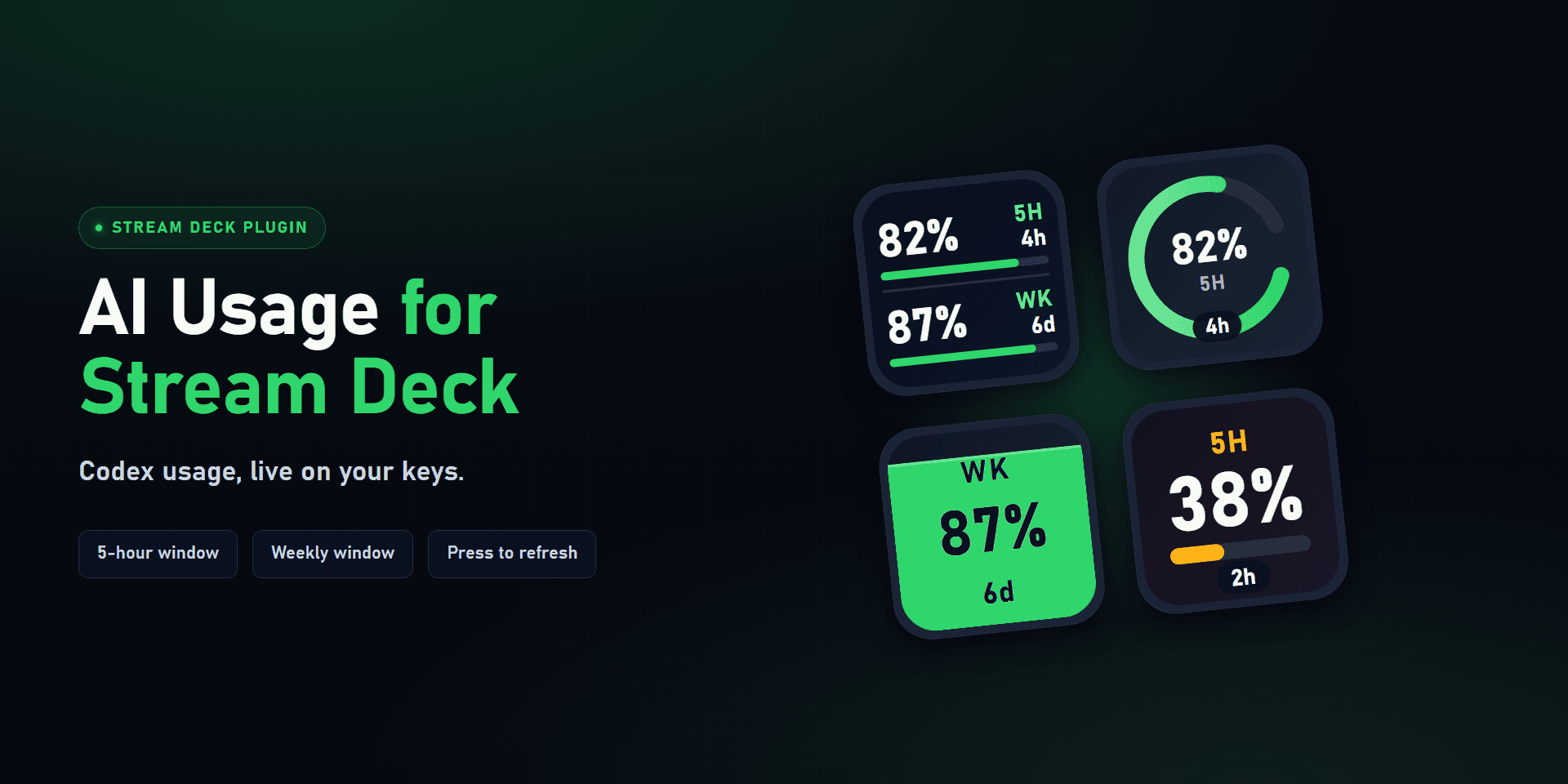
Everyone seems to be using Codex now, and that changes how a normal coding session feels. You can be deep in an editor, moving fast with an agent beside you, then suddenly hit a usage limit at the worst possible moment. I made AI Usage Monitor because I wanted my remaining Codex usage visible on the hardware already sitting next to my keyboard: my Stream Deck.
Instead of opening dashboards, checking browser tabs, or guessing whether one more prompt is a good idea, the plugin puts your Codex 5-hour session and weekly allowance directly on Stream Deck keys. It is a small workflow signal, but it helps you decide when to push forward and when to slow down without leaving your editor.
What Is AI Usage Monitor?
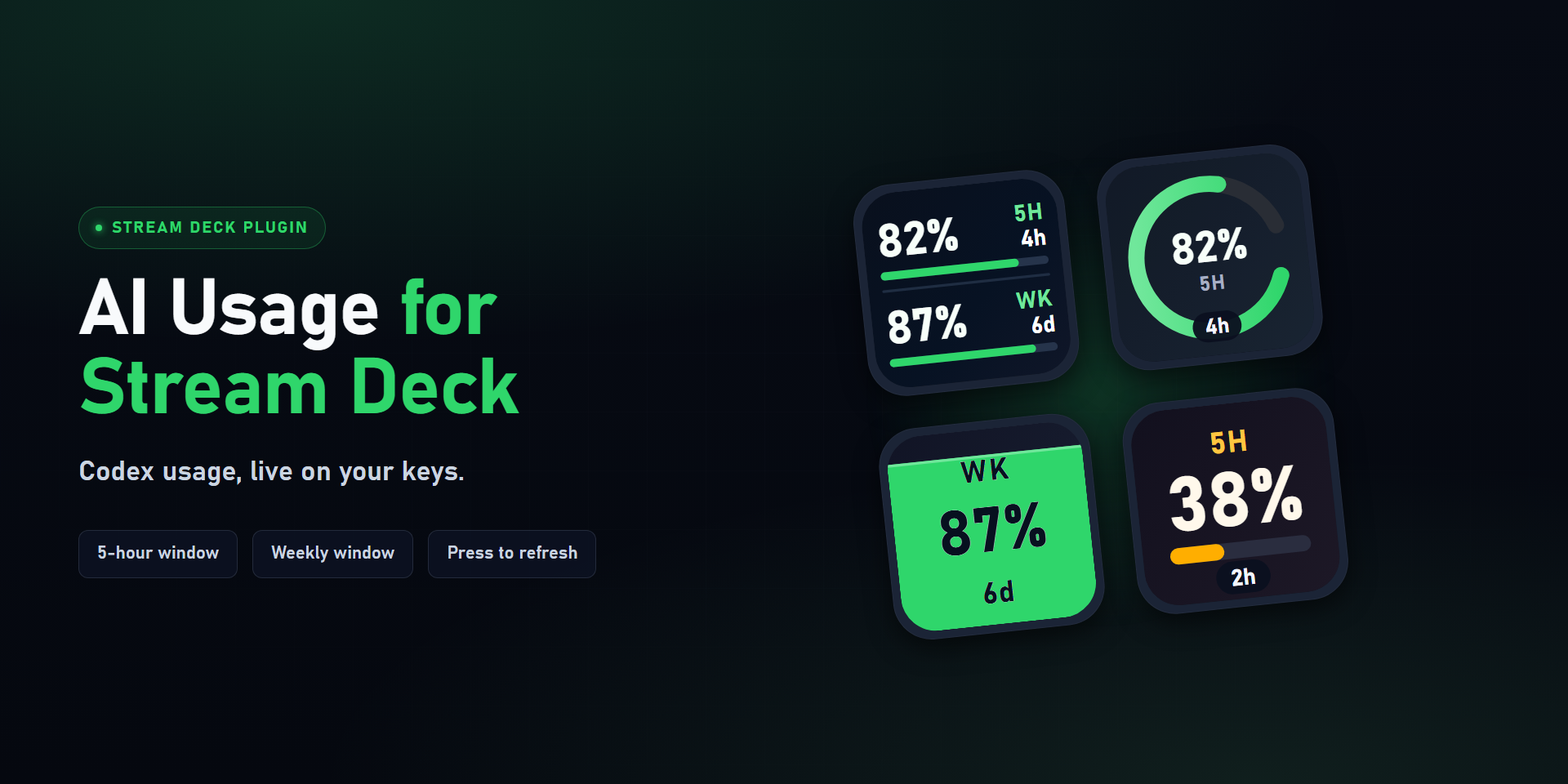
AI Usage Monitor is a Stream Deck plugin for Codex CLI users. It shows usage limits as readable key faces, so you can keep an eye on your allowance while staying in Visual Studio Code, a terminal, or whatever else you are building in.
The plugin is available on the Elgato Marketplace: AI Usage Monitor for Stream Deck.
The goal is intentionally simple:
- Show your current 5-hour Codex session usage.
- Show your weekly Codex usage.
- Keep the information readable on real Stream Deck hardware.
- Avoid extra accounts, telemetry, browser dashboards, or third-party services.
Key Insight: AI coding assistants are most useful when they stay inside your flow. A hardware usage indicator keeps the constraint visible without making it the center of your attention.
Why I Built a Codex Stream Deck Usage Monitor
Codex is becoming part of the day-to-day development loop for a lot of people. That means usage limits are no longer an occasional account detail; they are part of the working environment.
When I am in a long coding session, I do not want to discover my limit by getting throttled mid-task. I want a quick sense of whether I can keep pushing, whether I should batch my next few prompts, or whether I am close enough to the edge that I should switch gears.
That is exactly the kind of thing Stream Deck is good at. It already gives you a compact physical surface for status, shortcuts, and context. So the plugin turns Codex usage into something you can read with a glance, the same way you might glance at CPU usage, a meeting timer, or a build status.
Three Actions, One Plugin
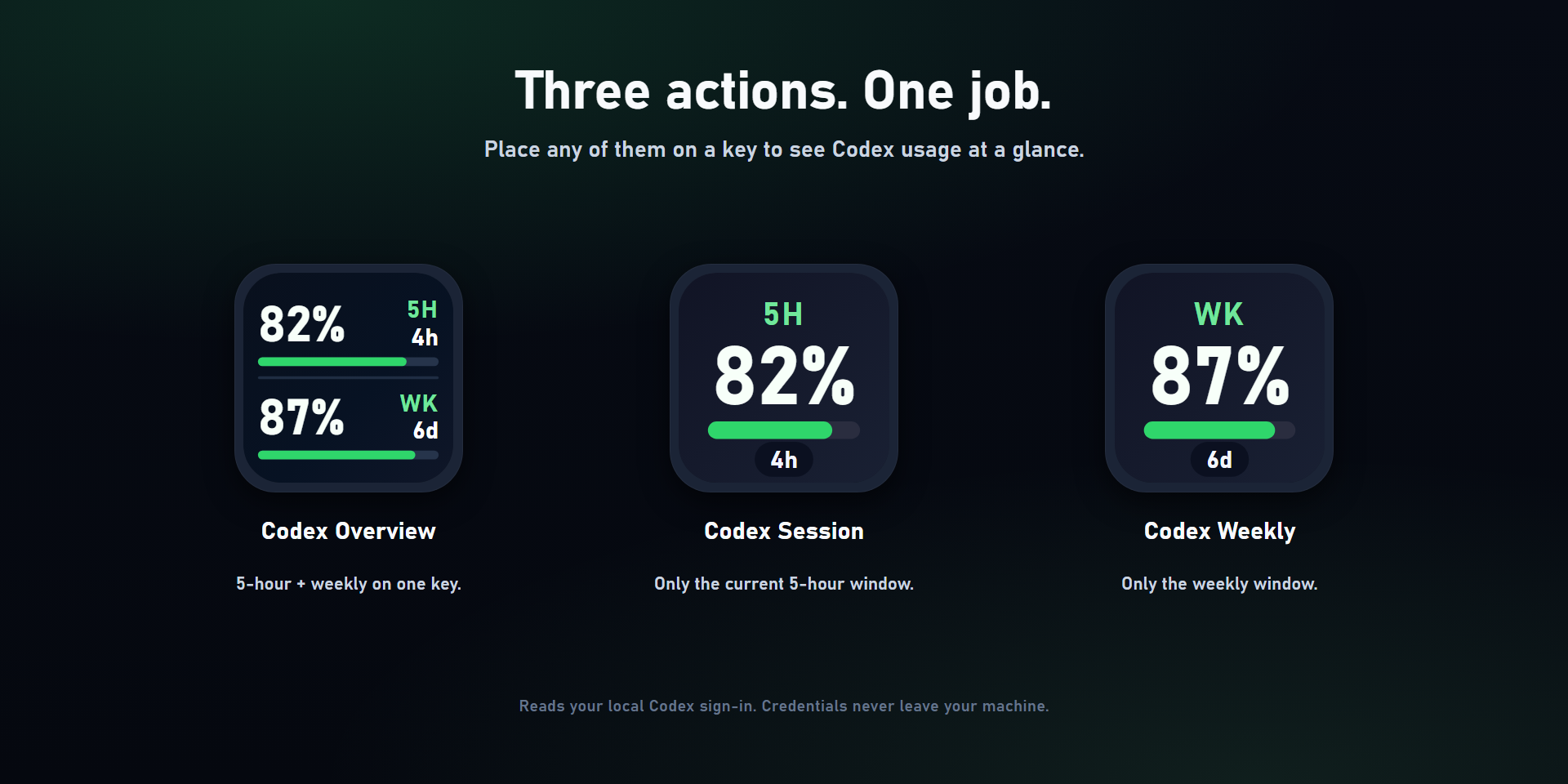
AI Usage Monitor ships with three Stream Deck actions. You can use one key for a compact overview, or split your limits across multiple keys if you prefer larger numbers.
| Action | What It Shows | Best For |
|---|---|---|
| Codex Overview | Both 5-hour and weekly usage on one key | A single always-on status key |
| Codex Session | Current 5-hour window | Long coding sessions where short-term usage matters most |
| Codex Weekly | Weekly allowance | Planning usage across the week or across a team workflow |
The overview key is the one I reach for first. It gives both limits in one place, with the current 5-hour window and weekly allowance stacked into a compact layout. The session and weekly keys are useful when you want one big number per key and less visual competition.
Built for Real Stream Deck Keys
Designing for a Stream Deck key is not the same as designing for a dashboard. A key face is small, the viewing angle changes, and dense UI chrome becomes unreadable quickly. The plugin renderer was built around that constraint rather than treating the Stream Deck like a tiny browser tab.
Each key prioritizes a clear percentage, a short label, and a compact reset timer. The overview key uses two large percentage blocks. The single-window actions support three display styles so you can choose what works best on your hardware and desk setup.
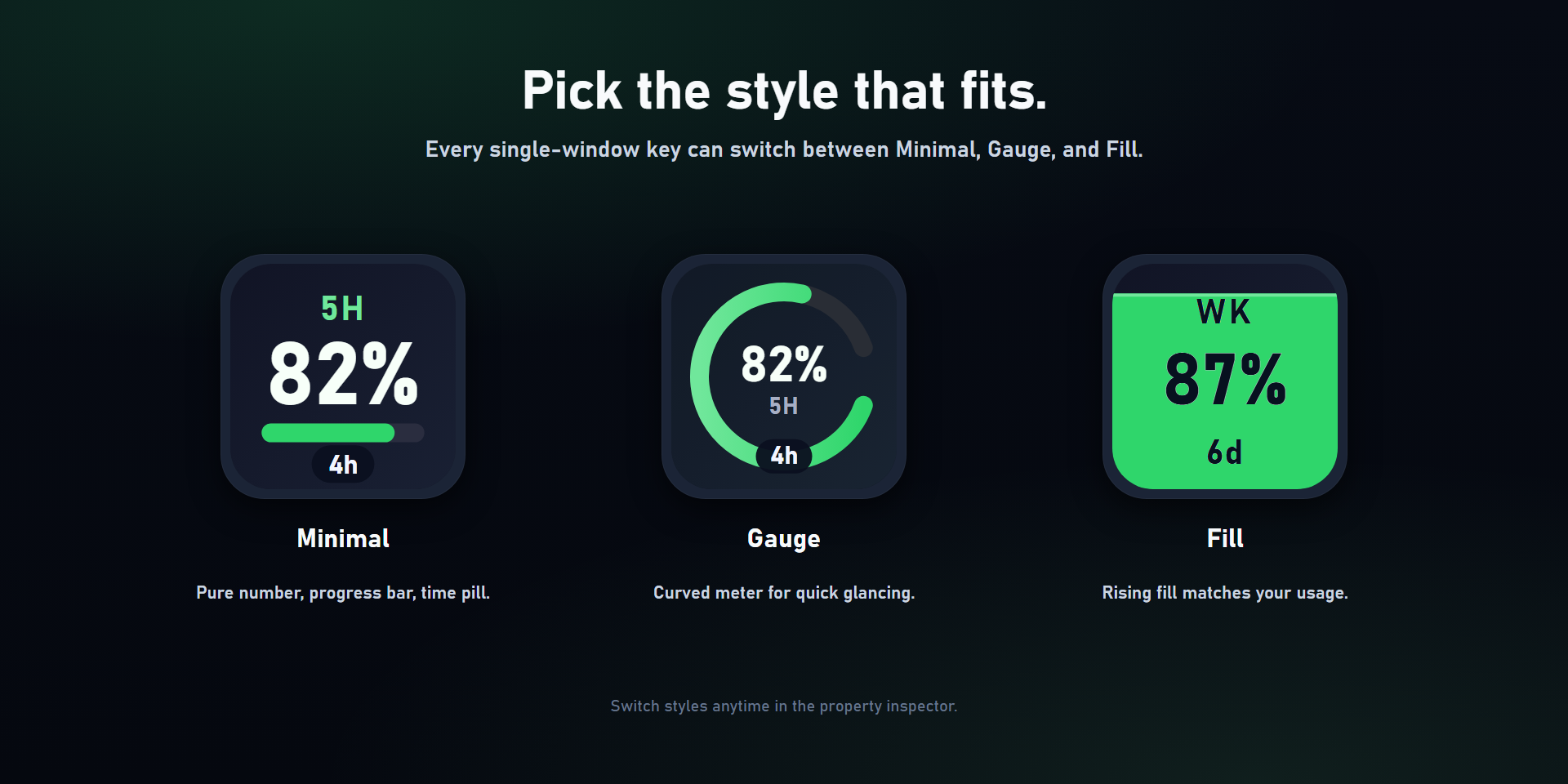
The display options are:
- Minimal: large percentage, short label, progress bar, and reset timer.
- Gauge: circular meter with the percentage in the center.
- Fill: full-key fill treatment for a more visual remaining-or-used indicator.
By default, AI Usage Monitor shows remaining usage because that is usually the more actionable number. If you prefer to think in terms of how much you have already used, you can switch a key to used mode in the Stream Deck property inspector.
How It Works Locally
The setup is deliberately boring, which is a feature. AI Usage Monitor uses your existing local Codex CLI login. You do not paste tokens into Stream Deck, create a separate account, or configure a custom backend.
The runtime flow looks like this:
- Find the local Codex auth store from
CODEX_HOME/auth.jsonor~/.codex/auth.json. - Reuse the existing Codex access token or local API key already created by Codex CLI.
- Refresh OAuth tokens when needed.
- Call the official Codex or ChatGPT usage endpoint.
- Normalize the response into session and weekly usage windows.
- Render the final Stream Deck key image locally.
The plugin polls in the background, and pressing a key forces an immediate refresh. If a refresh fails, the key keeps the last successful value and marks it as stale instead of blanking out the display.
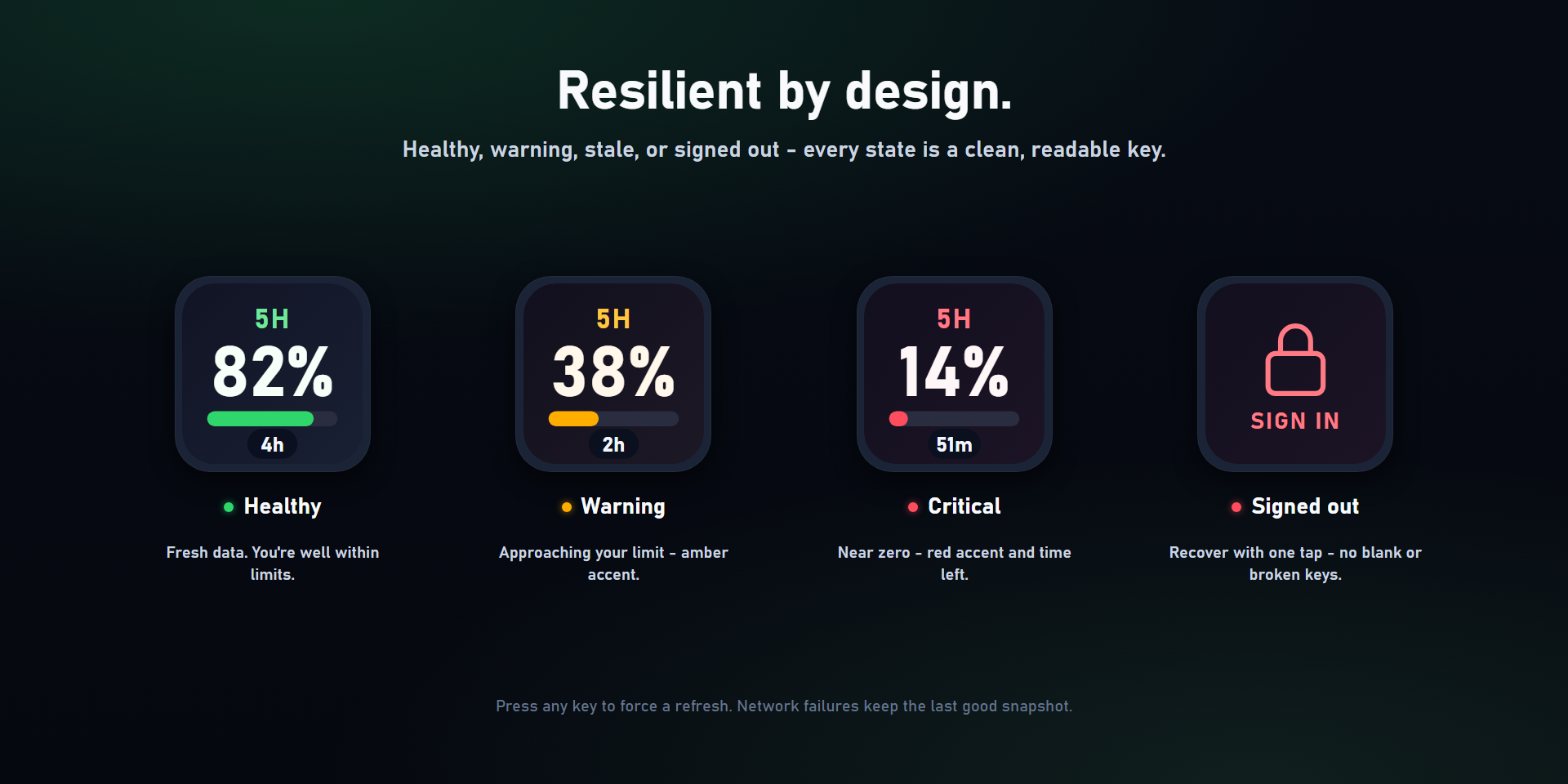
That stale behavior matters during real work. A slightly old value is often more useful than no value, especially when you only need a directional signal before sending the next prompt.
Setup
Setup is intentionally short:
codex
Sign in to Codex CLI if you have not already. Then install AI Usage Monitor from the Elgato Marketplace, add one of the Codex actions to a Stream Deck key, and you are done.
There is no separate dashboard to authorize and no extra configuration file to maintain. If Codex CLI is already signed in on the machine, the Stream Deck plugin has what it needs.
Privacy and Security
AI Usage Monitor is private by default. The plugin runs locally, uses your existing Codex session, and does not send telemetry, analytics, or usage data to a third-party service.
The important security choices are:
- Credentials stay in the local Codex CLI auth store.
- Sensitive values are not copied into Stream Deck action settings.
- The plugin communicates only with official Codex or ChatGPT usage endpoints.
- Removing the plugin does not modify your Codex installation or sign-in state.
For a small utility like this, privacy should be the default posture. The plugin only needs enough access to ask the official service, "How much usage is left?" Everything else stays on your machine.
Real-World Workflow
Here is the situation I built this for: you are halfway through a debugging pass, Codex is helping with code search and implementation, and you are deciding how much autonomy to give it for the next step.
Without a usage signal, it is easy to keep prompting until you hit a limit. With AI Usage Monitor on a Stream Deck key, you can make a better call:
- Plenty of 5-hour usage left: keep the agent moving through implementation and tests.
- Session usage getting tight: batch instructions more carefully and avoid noisy retries.
- Weekly usage getting low: reserve Codex for the tasks where it saves the most context switching.
- Stale or sign-in badge showing: refresh, check Codex CLI auth, or avoid trusting the displayed number.
This is also useful for teams managing shared expectations around AI coding. Even when limits are individual, having a visible usage habit changes how you plan deep work.
Common Pitfalls
- Installing the plugin before signing in to Codex CLI. Run
codexfirst so the local auth file exists. - Treating weekly usage as the only important number. The 5-hour session limit is often what interrupts active work.
- Choosing a display style that looks good in a screenshot but is harder to read at your desk. Test Minimal, Gauge, and Fill on the actual key.
- Ignoring stale badges. A stale value can still be useful, but it tells you the latest refresh did not complete.
Best Practices
- Put Codex Overview on your main Stream Deck profile if you want one compact signal.
- Use separate Session and Weekly keys if you are in long AI-assisted coding blocks every day.
- Keep the display mode on remaining unless used percentage better matches how you plan work.
- Tap the key before a long prompt if you want a fresh usage check.
- Pair it with other physical workflow tools, like a dedicated productivity mouse or editor shortcuts. I wrote about one of my favorites in why the Logitech MX Master 3S is still my daily driver.
Key Takeaways
AI Usage Monitor exists because Codex is becoming part of the normal developer workflow, and usage limits should be visible where the work is happening. Stream Deck is a natural place for that signal: persistent, glanceable, and out of the way.
You get three Codex actions, readable key layouts, remaining or used views, instant refresh on tap, local-only runtime behavior, and no extra setup beyond your existing Codex CLI login.
No dashboards. No browser tabs. No surprise rate limits. Keep your flow, keep your context, and keep coding.